MD-01 Usage Guide
Start with a box check, a clear floor and the instructions for your controller. This guide takes you from preparation to a first controlled movement, then gives you a short route through common setup problems.
Unboxing checklist · Controls and stopping · Troubleshooting · Software and simulation paths
Check your software version first. The control examples below were checked against Pollen Robotics documentation at revision 648bf22 on 15 October 2026. They are documentation-based instructions, not a hands-on test or confirmation of the software supplied with your unit. Use the matching instructions if your installed version differs.
Unbox, check and prepare
The published robot package contains these four items. Optional packs are separate purchases; compare everything received with your order and packing list.
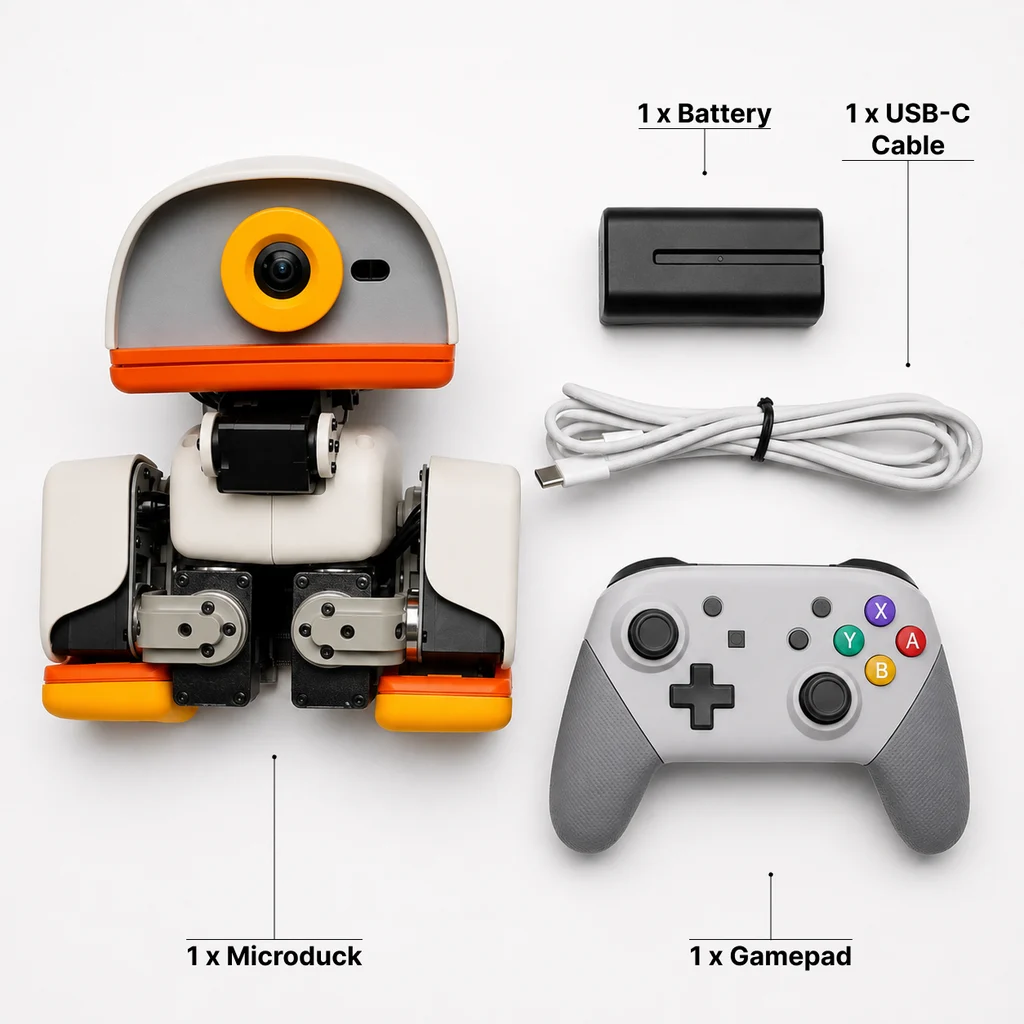
Robot
Check the shell, feet, beak and joints for visible damage. Keep the packaging and take clear photos of any problem before operating the unit.
Removable battery
The published specification lists an NP-F550 battery. Follow the supplied battery and installation instructions. Do not use a visibly damaged battery.
USB-C cable
Check that the cable is present and undamaged. A supplied cable does not by itself identify the correct charging connection or power supply; follow the battery and robot instructions.
Game controller
Note the controller model and its button labels. Pairing steps differ between controllers; use the section for the model actually supplied.
- Resolve missing or damaged items. Contact support before operating a damaged robot. Check an optional pack against its own product page, not the robot-box list.
- Prepare a level floor. Clear space around the robot, away from edges, stairs and water. Keep hands, loose clothing and cables away from moving joints, and supervise children.
- Identify the runtime. If terminal access is already set up,
robotctl versionshows running and installed component versions in the referenced documentation. Otherwise use the version information available with your unit or ask support to identify the matching guide. - Read the stopping instructions before enabling movement. Know which action stops the policy, which removes motor torque and which powers the robot off. Keep the robot on a stable surface when its joints become unpowered.
Pair the right controller
Use the official pairing guide at revision 648bf22. It has separate instructions for Xbox, DualSense and Pro Controller models; there is no single pairing-button combination for every pad.
On a matching runtime with terminal access, robotctl pad status reports both the controller connection and the padd driver. Both matter: a connected controller alone does not prove its input is reaching the robot. Follow the model-specific guide if pairing is needed.
Choose one simple movement
The following is a quick reference for the documented walking configuration at revision 648bf22. Confirm your installed version and bindings before trying it; roller mode and customised settings can behave differently.
Swipe sideways in the table to see all columns.
| What you want to do | Documented control | What to expect |
|---|---|---|
| Prepare to drive | Start, short press | The first press enables torque with a two-second ramp to the seat or home pose, depending on posture. The second press starts the policy; a seated robot first rises. Later presses toggle the policy. |
| Move on the floor | D-pad left | Move mode: left stick moves forward/back and sideways; right stick turns. Make the first movement short, then release the sticks. |
| Look around without walking | D-pad up | Head mode: left stick controls head yaw/pitch; right stick controls neck pitch/head roll. The body holds still but remains powered. |
| Sit or stand | A / cross | Toggles sit and stand. Let one action finish before requesting another; a seated robot accepts A to stand. |
| Try a ground pick | B / circle | Requests the ground-pick action in walking mode. Check the space around the beak and legs before starting; do not place fingers in moving parts. |
| Use X, Y or the bumpers | X, Y, LB / RB | Unassigned by default in this revision. They can be bound to skills; a button with no binding is not a pairing fault. |
Standing still, resting and switching off are different
Do not treat this table as an emergency-stop guarantee. These controls require the matching runtime and a working controller connection. Releasing the sticks does not remove torque. Rest removes joint support; use a stable floor area and keep hands clear while the robot moves into its rest pose. Follow the supplied shutdown instructions if the controller does not respond.
Swipe sideways in the table to see all columns.
| Action | Documented result | Motor power |
|---|---|---|
| Release the movement sticks | The robot stands; the policy can still run. | Torque remains enabled. |
| Hold Start for 1.5 seconds | Policy off; returns to the home pose, or stays seated if already sitting. | Motors remain stiff. |
| Hold Select, then release between 2 and 4 seconds | Rest: a driving robot sits and eases into its rest pose before torque is removed and the servos reboot. A robot not driving is rebooted where it is. | Torque turns off; do not rely on the joints to hold the body up. |
| Hold Select for 4 seconds | Shutdown: the same sit/rest sequence, followed by the board switching off. | Robot powers off. |
Source for both control tables: official gamepad reference, revision 648bf22. A short press of Select does nothing in this version. Stop using the robot if a joint, battery or cable appears damaged; power down according to the supplied instructions before inspection or servicing.
Six setup problems to check
1. The controller will not pair. What should I check first?
Confirm its exact model and follow that model’s pairing-mode instructions. Being switched on is not necessarily being in pairing mode. On a matching runtime, check robotctl pad status, then use the versioned pairing guide. If pairing repeatedly fails, record the error for support; board-specific Bluetooth workarounds are not a universal setup step.
2. The pad is connected, but the robot does not move.
Read both lines of robotctl pad status: the connection and the driver can fail separately. Check your runtime version, current posture and selected control mode. In the referenced version, head mode does not walk and the first Start press only prepares the pose. If the expected next step still fails, record robotctl health rather than repeatedly enabling movement or forcing a joint.
3. A button does nothing or does something different.
Compare your version and operating mode with the table above. X, Y and the bumpers are unassigned by default in this revision; custom bindings can change the face buttons. With supported terminal access, robotctl pad bindings lists those bindings. Wait for an action to finish before requesting another. Do not reset settings just to make the robot match this page.
4. I released the sticks. Why are the joints still stiff?
Releasing the sticks stops the movement request, not the motor torque. Holding Start for 1.5 seconds also leaves the motors stiff in this revision. Use the matching rest or shutdown instructions above when you need the motors unpowered, with the robot safely positioned before support is removed.
5. The robot stops unexpectedly or the control link drops.
End the driving attempt and record the visible behaviour, controller indication and any error. Check robotctl pad status and robotctl health if available. The official guide distinguishes a lost connection from stalled input; specialist diagnosis uses robotctl monitor and its p pad view. An idle pad may send no input, so silence alone does not prove a fault. Seek support before another movement test if stopping is unreliable.
6. It works in simulation. Why does the physical robot behave differently?
The simulator cannot check the real motor bus, Bluetooth radio, camera hardware or AI accelerator. Match the policy and software versions, then use the physical robot’s status and error information. A successful simulated movement is not proof that the controller, battery or hardware is working correctly.
Choose your Microduck software path
Controller use, a browser demo, local simulation and training a new policy are different activities. Start with the path that matches your goal; development tools are not a requirement for basic controller use.
Swipe sideways in the table to compare the paths.
| Your goal | Where it runs and what you need | Result and next step |
|---|---|---|
| Use the controller | The physical robot, its installed software and a paired compatible controller. | Operate the behaviours supported by that version. Start with the controller and stopping reference. |
| Try a browser demo | The official Hugging Face simulator, accessed in a browser; follow its on-screen requirements. | Explore virtual movement before choosing a development setup. This does not test a physical robot or its hardware. |
| Develop with local simulation | A computer with the runtime build tools and the Microduck RL environment required by the versioned simulation guide. | Exercise runtime software and policies against a MuJoCo body. Physical drivers, radio and sensors still need hardware testing. |
| Train a new policy | The Microduck RL training setup uses a CUDA GPU and uv locally. The documented Hugging Face Jobs option depends on that service’s access and requirements. | Train a movement policy and export it to ONNX. Check compatibility with the runtime and follow the hardware test guidance before deployment. |
Software-path sources reviewed on 26 October 2026: runtime documentation revision 648bf22 and RL README revision b02fdea. This comparison describes documented requirements, not an installation or hardware benchmark. Use the instructions matching the versions you install.
Start with the simulation resources
- Open the official browser simulator and read its startup and control instructions.
- For local development, follow the simulation guide at revision 648bf22 and check its dependencies against your environment.
- Keep simulated results separate from hardware results. Review a new policy in simulation first, then follow the hardware documentation for a supervised, conservative test.
The Microduck runtime repository documents the robot software. The Microduck RL repository covers reinforcement-learning tools and policy development. Operating the included controller and training a new policy have different requirements; a training setup is not a prerequisite for basic controller use.
Send support a useful description
Use Microduck support for product or setup questions. Include:
- The controller model and installed software version, if known.
- The action you attempted, the robot’s starting posture and selected mode.
- What you expected, what actually happened and the exact error text.
- Whether it has ever worked, any recent update or accessory change, and the checks already tried.
- A short, unedited clip of the issue only if it can be captured safely. Remove account, network and other personal identifiers from screenshots or logs; never include passwords or access tokens.
Package contents and battery type were checked on 15 October 2026 against Pollen Robotics’ overview and published product specifications. This guide does not replace the instructions supplied with your robot.
Hardware specifications · Compare optional packs · Choose a colour and view the current MD-01 pre-order